Batch Image Processing: 10x Your Workflow Efficiency
Process dozens or hundreds of images at once. Learn batch compression, format conversion, and watermarking to automate repetitive tasks.
Processing images one by one is time-consuming, especially when you need to resize, compress, convert, or watermark a large set of files. Batch processing lets you apply the same settings to many images at once, so you can finish repetitive work quickly without sacrificing consistency.
When to Use Batch Processing
Batch processing is useful when the source images are similar and need the same treatment:
- Compressing a folder of website images
- Converting screenshots or product photos to another format
- Adding the same watermark to a set of portfolio photos
- Resizing a batch of images for email or social media
If each image needs unique settings, batch processing is not the right approach. In that case, process them individually.
How Batch Processing Works
A typical batch workflow has four steps:
- Prepare: gather the files and check that they are ready for processing.
- Configure: set the output format, quality, dimensions, or watermark once.
- Review: process a sample first, then inspect a few results.
- Export: download individual files or a ZIP archive.
Batch Processing with PictKit
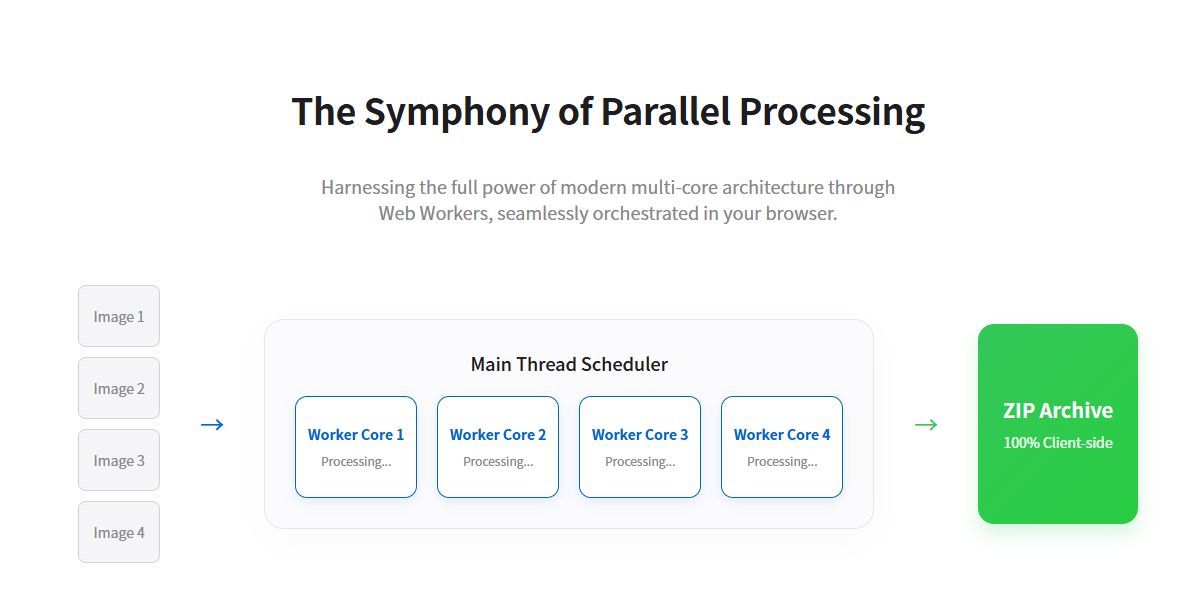
PictKit tools support multiple files and batch export. The workflow is similar across tools:
- Drag and drop several images into the upload area.
- Adjust the settings once; the preview updates for the selected image.
- Check that the settings work on images with different sizes.
- Export all processed files as a ZIP archive.
Best Practices for Batch Workflows
- Test on one image first: choose a representative file and verify the result.
- Keep source files safe: always keep the originals in a separate folder.
- Use consistent settings: same format and quality produce predictable results.
- Name outputs clearly: descriptive file names make the final folder easier to use.
- Check a sample from each batch: especially when images vary in size or color.
Common Batch Processing Tasks
Website Images
Resize large photos to the maximum display size, convert to WebP, and compress. A batch workflow can reduce hundreds of files to a fraction of their original size.
Product Photos
Apply the same background treatment, watermark, and export format to all product images. Consistency makes the catalog look professional.
Screenshots
Convert screenshots to PNG or WebP and remove unnecessary margins. Batch processing is useful for documentation updates.
FAQ
Can I process images with different resolutions in one batch? Yes, but the same settings are applied to all files. Use "fit within" or percentage-based resizing when images vary in size.
Will batch processing reduce quality? Only if you choose aggressive compression or resizing. Use a moderate quality setting and inspect a sample.
Can I stop a batch process? Yes. You can cancel before export. Completed files that have already been processed remain available.
Is batch processing safe for private images? With PictKit, all processing happens locally in the browser, so the files do not need to be uploaded to a server.