Image Format Conversion Guide
A comprehensive comparison of modern image formats. Understand transparency, compression, browser support, and choose the right format.
Image formats are not interchangeable. A PNG that works well for a logo can be the wrong choice for a photo, and a JPEG that is fine for a camera export can add unnecessary weight to a website. This guide explains the differences between common formats and how to convert images with PictKit without losing quality.
Why the Format Matters
The format determines three things:
- Compression method: how much data can be removed from the file.
- Transparency support: whether the image can contain transparent areas.
- Compatibility: which browsers, apps, and devices can open the file.
Choosing the right format is usually more effective than applying a compression setting to the wrong format.
Common Image Formats Compared
| Format | Compression | Transparency | Best for |
|---|---|---|---|
| JPEG | Lossy | No | Photos, camera exports, email |
| PNG | Lossless | Yes | Screenshots, logos, line art, UI assets |
| WebP | Lossy or lossless | Yes | Website images, modern apps |
| AVIF | Lossy or lossless | Yes | High-efficiency web images |
| ICO | Lossy or lossless | Yes | Favicons and desktop icons |
JPEG remains the most compatible format for photography. PNG is the safest choice when text, sharp edges, or transparency matter. WebP and AVIF provide the best size-to-quality ratio for modern browsers.
How to Convert Images with PictKit
- Open the format converter or drag files into the upload area.
- Select the output format: JPEG, PNG, WebP, or AVIF.
- Adjust quality when converting to a lossy format.
- For transparent backgrounds, choose PNG, WebP, or AVIF.
- Review the preview, then download individual files or export the whole batch as a ZIP.
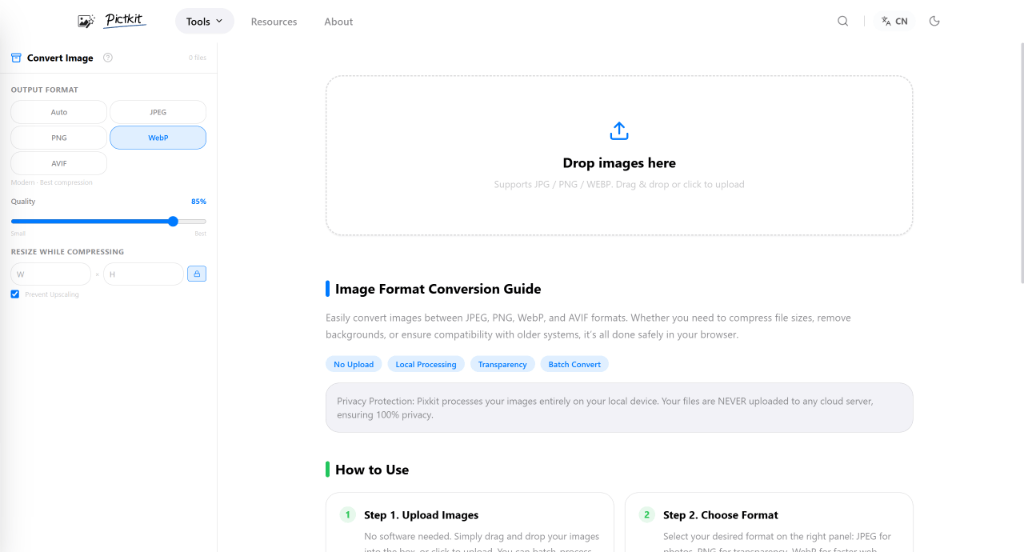
When converting a batch, apply the same output format and quality settings to every file, then inspect a few results before downloading.
Best Practices by Scenario
Photos for the Web
Use WebP or AVIF with a quality setting around 75-85. If the site must support very old browsers, provide a JPEG fallback or keep JPEG as the primary format.
Logos and Illustrations
Keep vector artwork in SVG. When a raster export is required, PNG preserves sharp edges and transparency. Use PNG-8 or a compressed PNG where possible.
Screenshots
PNG is usually best because it keeps text sharp. If the screenshot is large, WebP lossless can reduce the size while keeping the same pixels.
Favicons
Generate an ICO for older desktop browsers and provide PNG or SVG versions for modern browsers.
What to Watch For
- Bandwidth: converting a large PNG photo to WebP or AVIF can reduce the file by more than 70%.
- Quality: repeated conversions between lossy formats accumulate artifacts. Convert from the original file when possible.
- Color: different formats handle color profiles differently. Check the result if exact color matching matters.
- Metadata: some conversion tools remove EXIF and other metadata. This is usually desirable for privacy, but it may matter for photographers.
FAQ
Should I convert PNG to JPEG? Only if the image does not need transparency and the lossy quality is acceptable. For photos, JPEG is fine. For graphics with text or sharp edges, keep PNG.
Is WebP better than JPEG? In most cases, yes. WebP offers comparable quality at a smaller size and supports transparency. JPEG is still useful for maximum compatibility.
Does converting reduce quality? Converting between lossy formats can reduce quality. Converting from a lossless source such as PNG to a lossy format is a single, controlled conversion that usually looks fine at the right quality setting.
Can I convert multiple images at once? Yes. PictKit supports batch conversion and exports the results as a ZIP file.