Protect Your Privacy: Remove Image Metadata
Your photos contain hidden data like GPS location, camera model, and timestamps. Learn how to strip this metadata before sharing online.
Photos contain more information than the pixels you see. Camera model, lens settings, timestamps, and sometimes GPS coordinates are stored inside the file as metadata. Before sharing a photo online, it is worth knowing what this metadata contains and how to remove it safely.
What Is EXIF Metadata?
EXIF, short for Exchangeable Image File Format, is a standard used by cameras and phones to store information alongside the image. Common fields include:
- Camera make and model
- Lens, aperture, shutter speed, and ISO
- Date and time the photo was taken
- GPS coordinates, when location services are enabled
- Software used to edit the file
Not every photo contains all of these fields. GPS metadata is only added when the device has location recording enabled, but many phone cameras enable it by default.
Why Metadata Can Be a Privacy Risk
Sharing an unmodified photo can expose details you did not intend to publish:
- A photo taken at home can reveal your address if GPS coordinates are embedded.
- A work document photo can reveal the device and software used to capture it.
- Metadata can make it easier to identify the original source of an image.
The risk depends on how and where the photo is shared. Social platforms often strip metadata, but file-sharing services, email attachments, and direct downloads usually preserve it.
How to Check What a Photo Contains
Use PictKit's EXIF viewer to inspect a file without uploading it. The tool reads the metadata directly in the browser and displays fields such as camera model, exposure settings, and GPS location when present.
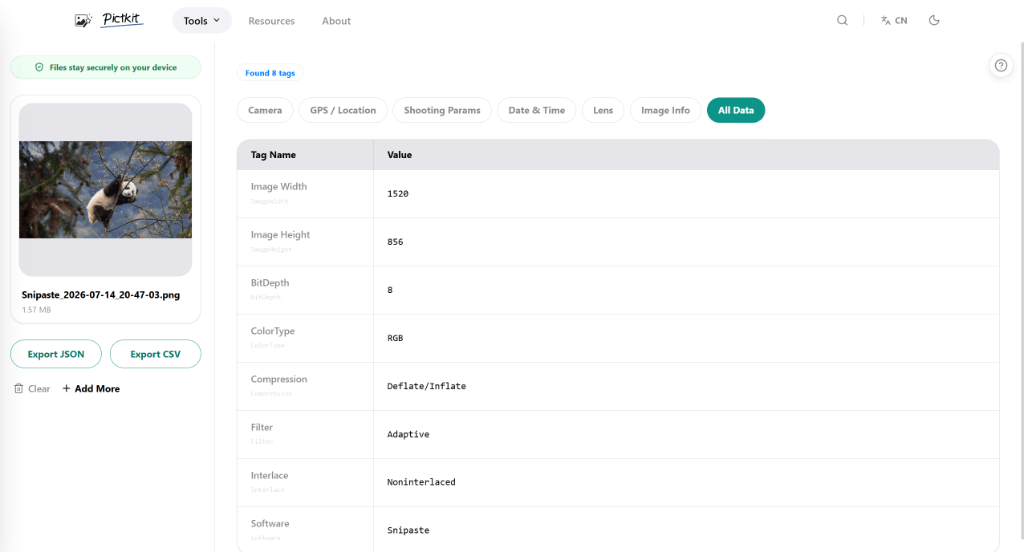
If you only need a quick check, the file properties panel on your operating system can also show basic fields, but it may not show all embedded data.
How to Remove Metadata
PictKit's metadata removal tool strips EXIF, GPS, and other metadata while keeping the visual content unchanged. The process is simple:
- Open the tool and drag in the photo.
- Confirm that the preview looks correct.
- Download the cleaned file.
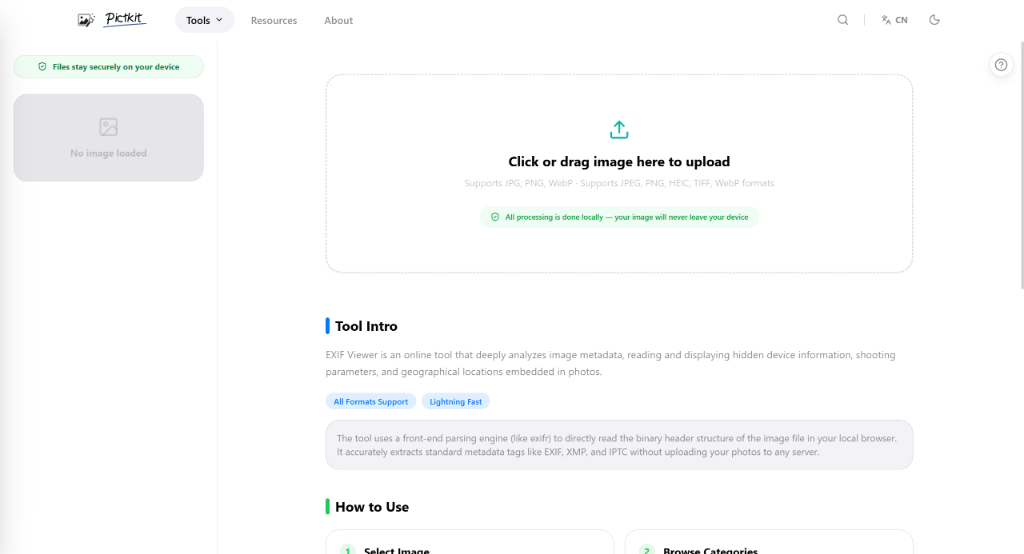
Because the processing happens in the browser, the original file never leaves your device.
Privacy Checklist Before Sharing
- Check whether GPS is enabled on your camera or phone.
- Use a metadata removal tool before sending photos as attachments.
- Keep the original file only on your own device.
- Re-export or resize the image if you do not need full resolution.
- Review the platform's handling of metadata if privacy matters to you.
FAQ
Do social media platforms remove EXIF automatically? Many do, but not all, and the behavior can change. Do not rely on the platform to protect your metadata.
Does removing metadata reduce image quality? No. Metadata is stored separately from the pixel data, so removing it does not change the visible image.
Can I remove GPS from only one photo? Yes. Use the metadata removal tool on individual files or process a small batch.
Should I remove metadata from every photo? Not necessarily. Photographers sometimes need to preserve copyright and camera information. Remove metadata when sharing private or sensitive images.