Complete Guide to Image Watermarking: Protect Your Creative Work
Learn best practices for text and image watermarks. How to protect copyright without compromising aesthetics — perfect for photographers and content creators.
Watermarks help photographers and creators mark ownership, reduce casual copying, and build brand recognition. A good watermark is visible enough to be useful, subtle enough not to ruin the image, and placed where it is difficult to crop away. This guide explains how to choose a watermark style and how to apply it efficiently with PictKit.
Text Watermarks vs. Logo Watermarks
| Type | Best for | Considerations |
|---|---|---|
| Text watermark | Personal photos, quick protection | Easy to set up; use a consistent font and opacity |
| Logo watermark | Brands, agencies, product photos | More professional; needs a transparent PNG logo |
Text watermarks are useful when you need a fast, repeatable workflow. Logo watermarks are better when you want consistent branding across a large set of images.
Where to Place a Watermark
There is no single correct position, but the choice depends on your goal:
- Corner: least intrusive and common for social media.
- Center: harder to crop, but can distract from the subject.
- Tiled across the image: useful for drafts or sensitive documents that should not be reused without permission.
For photography portfolios, a semi-transparent watermark in a corner is usually enough. For product photos or preview files, consider a repeated watermark across the image.
How to Add a Watermark with PictKit
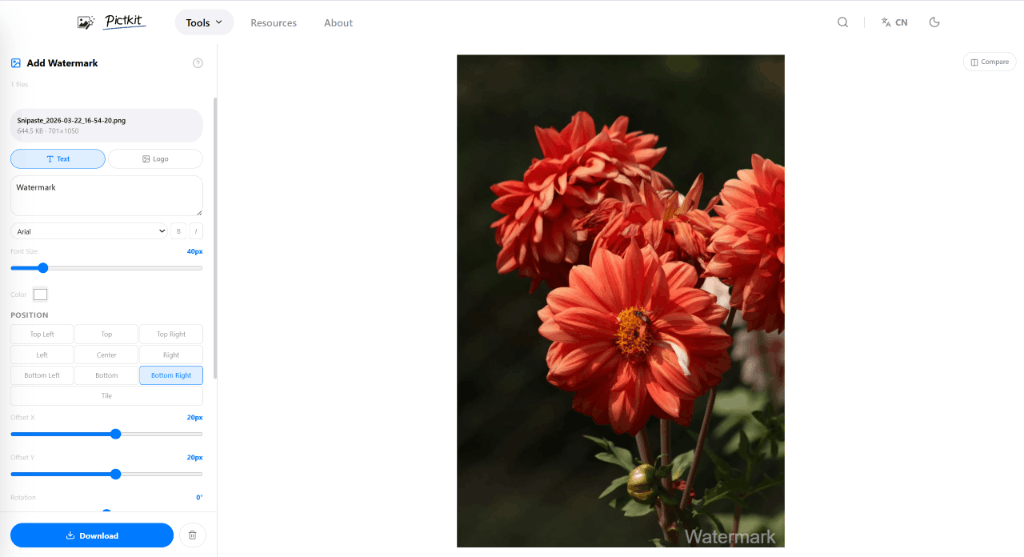
- Open the watermark tool and upload one or more images.
- Choose a text watermark or upload a transparent logo.
- Set the font, size, color, opacity, and position.
- Use rotation or tiling when you need stronger protection.
- Preview the result, then download individual files or export the batch as a ZIP.

Watermark Best Practices
- Keep it simple: a short name or a small logo is more professional than a long line of text.
- Use transparency: an opacity around 30-50% usually stays visible without overwhelming the image.
- Protect the corners: place the watermark over a detailed area so it cannot be removed with a simple crop.
- Test the final size: a watermark that looks good at full resolution may be too large or too small after resizing.
- Keep originals: always keep unmarked originals stored separately.
When a Watermark Is Not Enough
A watermark is a deterrent, not absolute protection. For high-value work, combine watermarks with:
- Limited-resolution previews
- Contracts and licensing terms
- Reverse image search monitoring
- Copyright registration where applicable
FAQ
Should I watermark every photo? Not necessarily. Watermark personal snapshots only when you need to identify ownership. For portfolio and commercial work, consistent watermarking is usually worth the effort.
Does watermarking reduce quality? The watermark itself does not reduce image quality. Re-exporting with aggressive compression can, so use a high-quality export setting.
Can I watermark many photos at once? Yes. PictKit supports batch watermarking and exports the processed images as a ZIP archive.
Can I remove a watermark? Once a watermark is merged into the image, removing it cleanly is usually not possible. Keep the original file if you may need a clean version later.